
Tasks, task success and time on task
Pick something people come to do, list its steps, and see how many manage, how long it takes and where they stop.
A task is something a person is trying to do in your product, like sending an invoice or inviting a teammate. You list its steps; Cueston measures every attempt.
Tasks need product analytics to be on for page and click steps.
Create a task
Open Insights → Tasks and choose New task. You need the View analytics and Edit drafts permissions.
Name it
Use what the person is trying to do: "Send an invoice".
Add the steps, first to last
Each step is one of:
- Opens a page — a page path. Use
*for any part:/invoices/*matches every invoice page. - Clicks a control — the text on a button or link, as people see it. If the text isn't unique, find the control by part of its selector instead, such as
button.pay. - Custom event — an event your product sends with
Cueston.track(), exactly as it's sent.
A task has 2 to 8 steps: at least where it starts and where it's done.
Results are worked out when you open the task, so a new or edited task shows the whole period at once.
How attempts are counted
An attempt is a session in which the first step happened. The steps after it count when they happen later in the same session, in order; other things may happen in between. The attempt succeeded when every step did.
Read the results
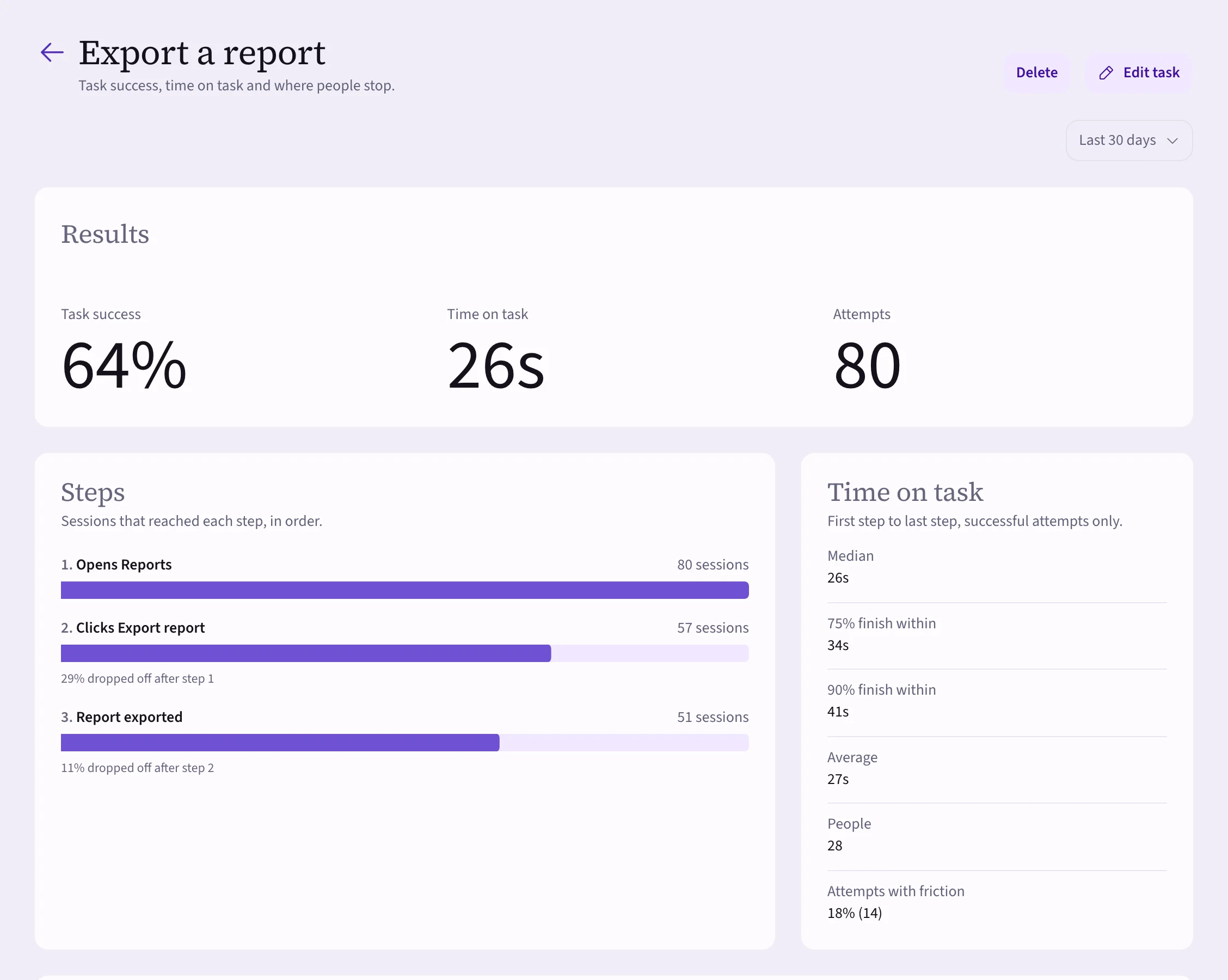 (opens the full-size image)
| Number | Means |
|---|---|
| Task success | Attempts that reached the last step. |
| Time on task | Median time from the first step to the last, for successful attempts. The task's page also shows the time 75% and 90% of people finish within, and the average. |
| Attempts | Sessions that started the task. |
| With friction | Attempts with a rage click, a dead click or an error on the way. |
Steps is the funnel: how many sessions reached each step, and the share lost before the next. Time on task per day shows whether a change you made is helping.
See what happened
Recent attempts lists the 50 newest, with how far each got. When the session was recorded, choose Watch to see it.
A step where many people stop, or an attempt that took far longer than the median, is the one to watch. Then fix it where it happens: a tooltip on the control, or a tour through the steps.
If nobody started the task
Check the first step. A page step uses the path as it appears under Insights → Pages (ids show as :id there; /invoices/* covers them). A click step uses the control's text as written.