
Who sees it
Audience rules decide who sees each item; segments save a group to reuse anywhere.
Every tour, tooltip, banner, checklist, survey and announcement has an Audience section. Without rules, everyone on the item's pages sees it. Add rules to show it only to the right people.
How rules work
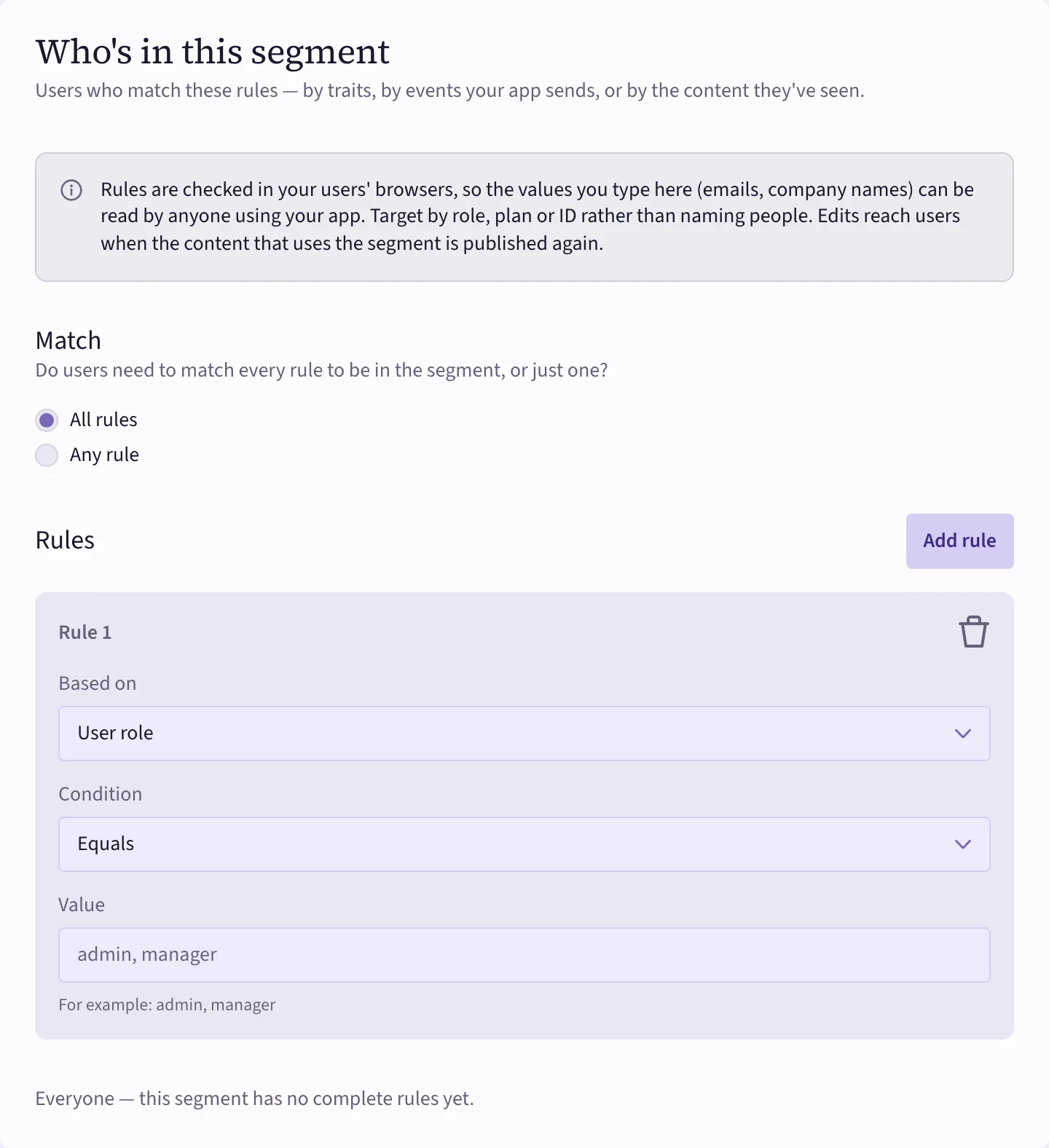
Choose whether people must match All rules or Any rule, then Add rule. Each rule is Based on one thing about the person, with a Condition and a Value. You can add up to 20.
About the person — what your app tells Cueston when someone signs in:
- User role, Permissions, Subscription plan, Company, Email address, User ID
- Custom attribute — anything else your app sends, such as company size or signup date.
What they did:
- Did an event — something your app reports, such as "report exported": At least or Fewer than a number of times in some days, or Not at all.
- Saw or finished other content — Has completed, Hasn't completed, Has seen, Hasn't seen or Has dismissed another tour, tooltip or banner. Good for a follow-up after a tour.
- First seen or Last seen — more or less than some days ago. New users, or people coming back after a break.
A saved group:
- Segment — Is in or Isn't in a segment.
People your app doesn't identify
Rules are checked in your users' browsers, so the values you type can be read by anyone using your app. Target by role, plan or ID rather than naming people or companies.
Segments
A segment is a saved group of users you can target from any item: "Workspace admins", "Trial users in week 2", "Power users".
- Open Segments and choose New segment.
- Give it a Name and an optional Description so your team picks the right one.
- Under Who's in this segment, add rules the same way as above.
- Choose Estimate to see roughly how many active users match (identified users active in the last 30 days).
- Choose Create segment.
 (opens the full-size image)
When you change a segment, items that use it pick up the new rules the next time they're published. Until then, they show "unpublished changes".
To check who a rule set would include, use Analytics → Audience debugger. See My guidance doesn't show up.