
Tours
Walk people through one workflow, step by step, pointing at the real interface.
A tour is an ordered set of steps. Each step points at an element on the page, such as a button, a menu or a field, and explains it in a sentence or two. A step without an element shows in the middle of the page, which works well as a welcome.
Three to seven steps on one workflow work best. A tour that explains everything gets skipped.
The editor
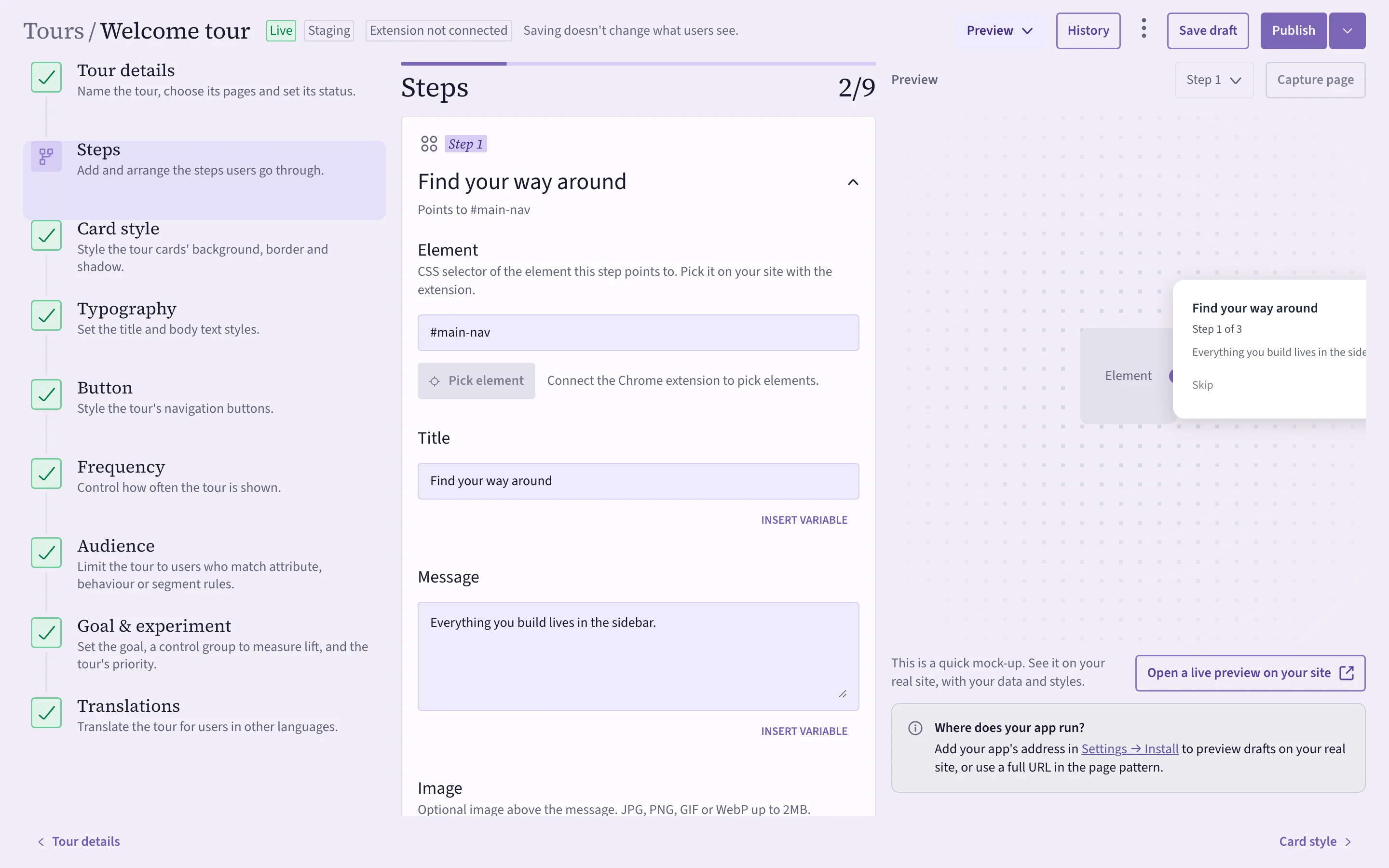
Open Tours, then Create tour or an existing tour. The editor has nine sections down the left. You can move between them in any order:
| Section | What you set |
|---|---|
| Tour details | Its name (only your team sees it) and the pages it starts on. |
| Steps | The steps, in order. |
| Card style | Background, border and shadow of the tour cards. |
| Typography | Title and body text sizes. |
| Button | The look of the Next and Back buttons. |
| Frequency | How often one person sees it. See When and how often. |
| Audience | Who sees it. See Who sees it. |
| Goal & experiment | What success means, a control group and the tour's priority. See Goals and experiments. |
| Translations | The tour in other languages. See Languages. |
 (opens the full-size image)
Steps
Choose Add step for each step, and drag steps to reorder them. A step has:
- Element — the CSS selector of what the step points at. Pick element lets you click it on your own site with the Chrome extension. Without the extension, ask a developer for a selector.
- Title and Message — keep them short. Insert variable adds the person's first name, last name, full name or email, from what your app tells Cueston.
- Image — optional, above the message.
- Button text and placement — where the card sits next to the element: auto, top, bottom, left or right.
The panel on the right is a quick mock-up. For the real thing, use Preview → Preview on site. See Drafts, previews and staging.
Save, preview, publish
- Save draft keeps your work. People using your app don't see drafts.
- Publish makes it live. Changes after that stay in the draft until you publish again.
- History lists every published version. See Versions and rollback.
Start a tour from your own button
Tours start on their own for people who match. A developer can also start a tour from a button or link in your app, for example a "Take the tour" link in your help menu. See JavaScript API.