
Drafts, previews and staging
Check your work on your real site before your users see it.
Drafts and publishing
Everything you change is saved to the item's draft. "Saving doesn't change what users see": people keep seeing the published version until you publish again. So it's safe to edit something that's live.
The status next to the item's name tells you where it stands:
| Status | Means |
|---|---|
| Draft | Never published. Only your team can see it. |
| Live | Published to production: people who match see it. |
| Unpublished changes | Live, and the draft has changes people don't see yet. |
| Staging only / Staging + Live | Published to staging (and production). |
| In review | Waiting for a publisher to approve. See Approvals. |
Preview before you publish
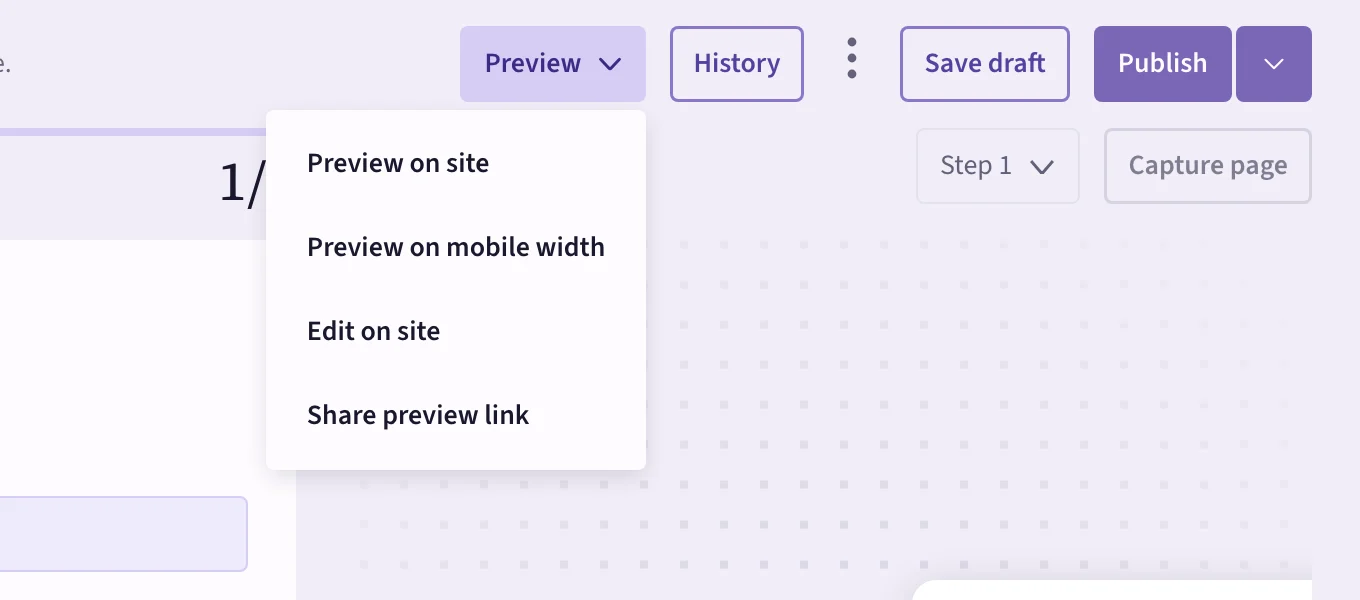
The Preview menu in the editor's header:
- Preview on site — opens your app with the draft on top, signed in as you, with your real data. Only you see it.
- Preview on mobile width — the same, in a phone-sized window.
- Edit on site — opens your app with the draft on top so you can adjust it in place.
- Share preview link — a link that shows the draft to someone else, such as a reviewer. Links are view-only and expire after the time you choose, and you can revoke them. Whoever opens one still needs access to your app.
 (opens the full-size image)
For previews to open the right page, set your app's address once in Settings → Install → Where does your app run?, or use full addresses in your page patterns.
Staging
If your team has a staging or QA app, publish there first. Open the arrow next to Publish and choose Publish to staging. Your staging app shows what you published to staging; production doesn't change.
For this, the snippet on your staging app needs the staging key from Settings → Install → Environments and publishable keys. Ask your developer; see Staging.
Unpublish
The same menu has Unpublish from production (and Unpublish from staging). The item stops showing right away. Its draft and history stay, so publishing brings it back.