
Get Cueston onto your site
What to send your developer, and how to check that it worked.
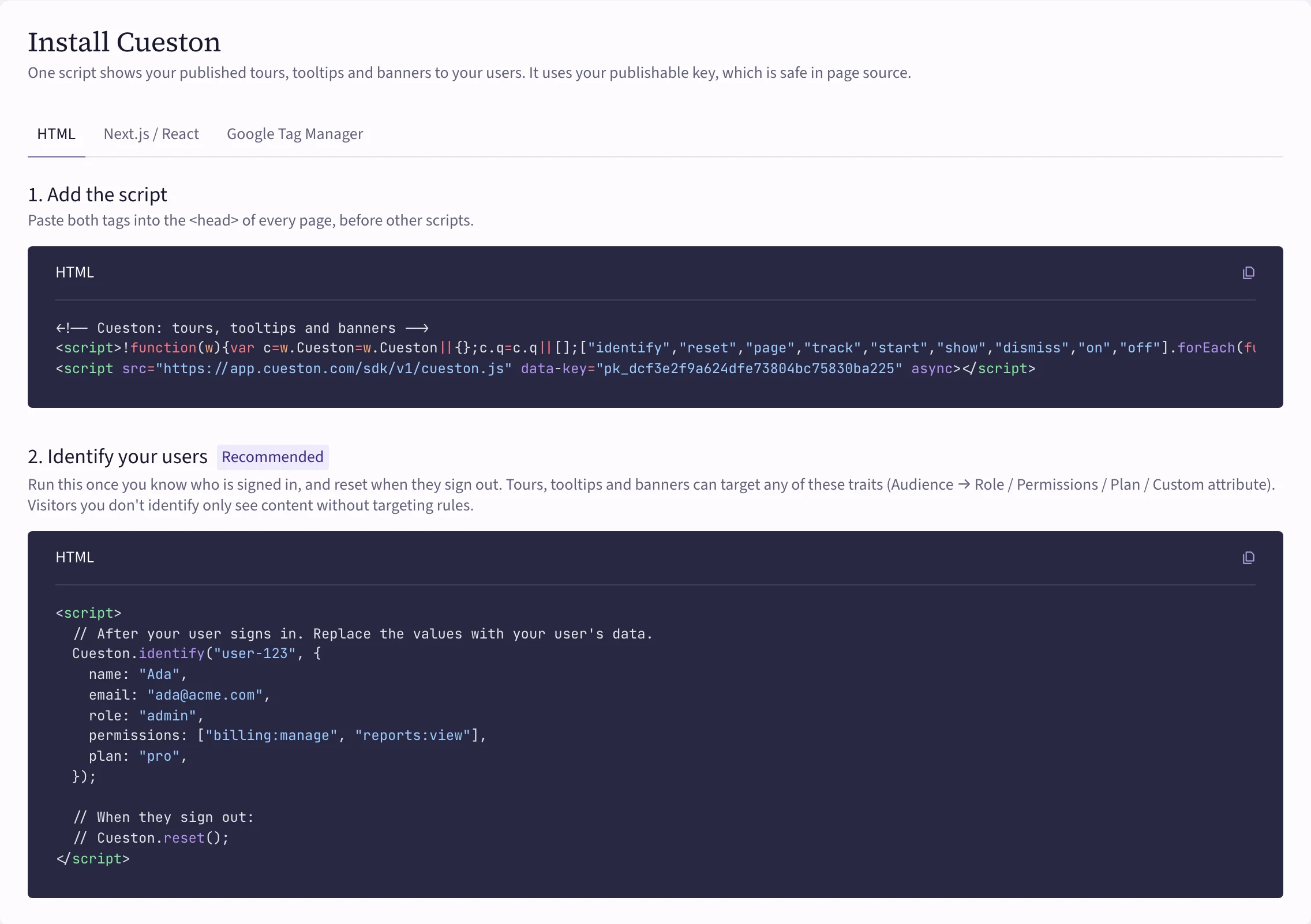
Your guidance shows up through one small script on your site, called the snippet. Adding it is a one-time job for whoever looks after your site's code. After that, everything you build and publish appears without more code.
 (opens the full-size image)
What to send your developer
- Open Settings → Install.
- Pick the tab that matches your site: HTML, Next.js / React or Google Tag Manager. The snippet already contains your workspace's key.
- Send them:
- 1. Add the script — it goes into the
<head>of every page. - 2. Identify your users (recommended) — it tells Cueston who is signed in, so you can target guidance by role, plan or permissions.
- A link to the developer guide: Install the snippet and Identify users.
- 1. Add the script — it goes into the
The key in the snippet is a publishable key: it can only read what you've published and send analytics, so it's safe in the page source.
Why identify matters
Check that it worked
Once the snippet is live, open any page of your site that has it. Then, in Settings → Install:
- Choose Check connection.
- Snippet connected successfully means you're done. Below it you'll see when and where Cueston last saw the snippet.
Still nothing? Check these, then try again:
- Open a page of your site that has the snippet.
- If you added Allowed domains on the same page, make sure your site's domain is one of them.
- If your developer used a tag manager or a site builder, the change has to be published there too. Clear any page cache.
Staging sites
If your team has a staging or QA version of your app, it can show what you published to staging before your users see it. Your developer puts the staging key from Settings → Install → Environments and publishable keys in the snippet on that site. See Drafts, previews and staging.